








Hours
Afternoons:
Monday–Friday, 12–5 pm
Evenings:
Monday–Thursday, 5–8 pm
Sunday, 4–8 pm
Closed during all CU breaks.




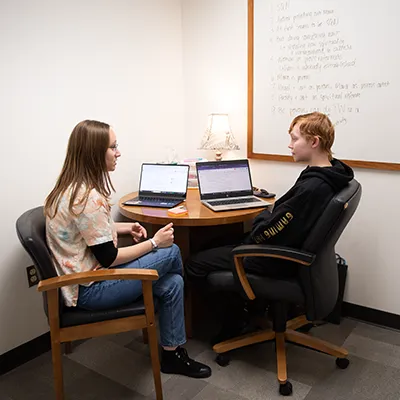
Our Tutors
Get the Writing Help You Need

Writing Tutors with expertise in:
- Communication
- English
- Education
- Environmental Science
- History
- Linguistics
- Molecular Biology
- Nursing
- Professional Writing and Information Design
Become a Tutor
If you like our approach to helping writers and would like to join our team, please consider applying. Writing consultants start at $11.50/hour and can earn up to $12/hour. The Writing Center is a supportive work environment that recognizes that you are first and foremost a student. Thus, consultants can arrange their schedules around class obligations and are not required to work during finals week.
Questions? Email Dr. Fern
Requirements:
- Complete English Composition with at least an A-
- Maintain a minimum 3.3 GPA
Hiring Process:
- Fill out our application form, which is linked below.
- Ask two Cedarville professors who have read your writing to fill out our recommendation form.
- Submit two college-level writing samples (at least one must include source citations).
- Attend an interview with the Writing Center Director.
- Take the one-credit hour training course (ENG-3550: Writing Center Theory and Training, Thursdays from 4–4:50 p.m.).
Writing Resources
Citation styles? Passive voice? Research tips?
We've got you covered. Explore these resources, which we have compiled for you, and if nothing answers your questions, stop by!
Schedule A SessionGet In Touch

Bryana Fern
Writing Center Director
Assistant Professor of English, Creative Writing
937-766-7449
bfern@cedarville.edu