









How to Change Default Line Spacing in Word
How to Change Default Line Spacing in Word
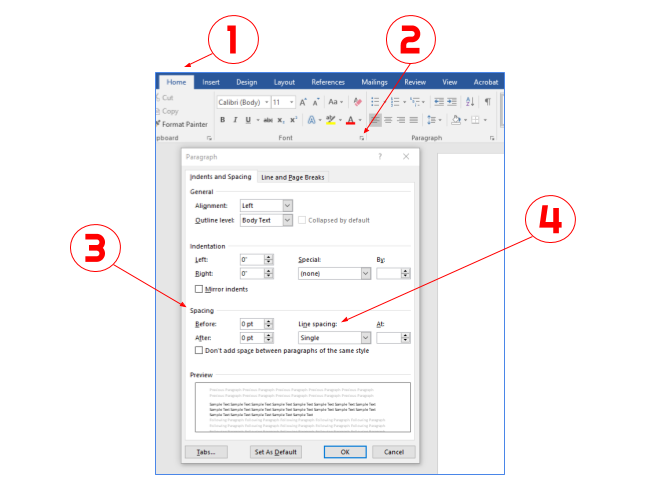
Upon installation, Microsoft Word uses 1.08 line spacing by default. It also automatically adds 8 points of space after each paragraph (after a hard return). You can change the default line spacing by following the steps below. Keep in mind that this is a machine-specific setting, so you will need to repeat these steps for any new computer that you log in to.
To change the default line spacing:
- Click the [Home] tab > Locate the "Paragraph" group.
- In the lower-right corner of the "Paragraph" group, click the arrow. A "Paragraph" dialog box will open.
- From the [Indents and Spacing] tab > Locate the "Spacing" section.
- From the "Line spacing" drop-down list, choose the spacing you would like Word to use by default.
- From the "Before" and "After" drop-down lists, choose the amount of spacing between paragraphs you would like Word to use by default. (If you want no extra spacing between paragraphs, set the spacing at 0 points.)
- Click the [Set As Default] button > Select "All documents based on the Normal template?" > Click [OK].
Note:
There have been a few cases on campus where the spacing defaults will not change permanently, and the line spacing has reverted to the system default of 1.08 when a new document is opened. Please submit an online Information Technology Request (ITR) if you experience this issue.
There have been a few cases on campus where the spacing defaults will not change permanently, and the line spacing has reverted to the system default of 1.08 when a new document is opened. Please submit an online Information Technology Request (ITR) if you experience this issue.
Keywords: space, single space, singlespace, double space, doublespace, research, paper, papers, term papers, rubric, paragraph, extra space, line spacing